Getting Started with

Overview
The integration between Zoom and Prodoscore allows users of both applications to break down into the Zoom Meeting and Call information in Prodoscore.
Prodoscore captures employees’ activities in applications as product integrations; Zoom is one of these integrations. The product usage is then processed to generate a score, which is the indicator for Management on their employees’ productivity.
Requirement for Installation
A user needs to consider the following requirements to integrate Zoom to Prodoscore.
- Registered domain to the Prodoscore application.
- The user should have a Zoom instance for their domain.
- User Type should be as “Licensed”
- A Zoom Phone license (for Zoom Phone module)
- The latest version of the Zoom Desktop Client application
The domain admin can authenticate Zoom within Prodoscore with the given requirements:
- The account used for authentication must be an account administrator within their Zoom instance and should be the account owner or a role with Zoom Phone management. within their Zoom instance
- The account admin must have a paid license (Pro license or above).
When a customer conveys an interest in using Zoom within Prodoscore, the Prodoscore Internal Administrator will enable Conference Calls for the customer Domain. The installation process can then be initiated by a Domain Administrator in Prodoscore who has permission to edit the Product Settings.
Installation: Connecting Zoom with Prodoscore
-
- The domain administrator can start setting up the integration to Prodoscore by directing from the left navigation menu in the Prodoscore Dashboard, as follows:
Settings → Products → Conference Call - Then the admin can select Zoom as the Conference Call system from the dropdown.
- After that, users can start authenticating Zoom to the Prodoscore application.
- Then a separate window will appear to authenticate in Zoom by entering the username and password.
- When authentication is done successfully, module selection and user mapping can be done next.
- The user can select the relevant modules [Meetings and Calls] and click Save modules. Then they can map the employees with the Zoom account, which auto maps if the Zoom username and employee Prodoscore username match. The user can also search and assign user names through the dropdown, as needed, and click Save Changes.
- When the setup is completed, Prodoscore will start fetching Zoom data from the next day onwards.
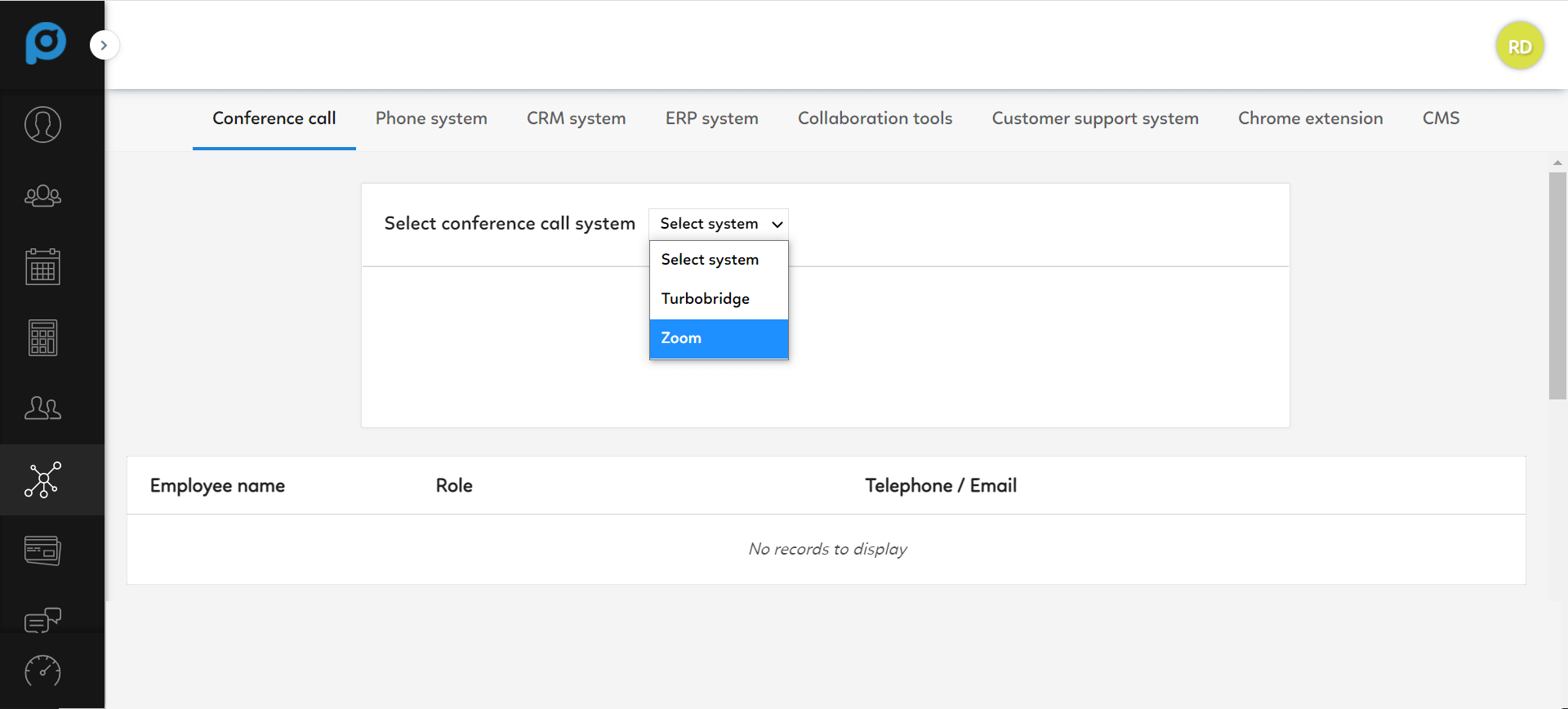
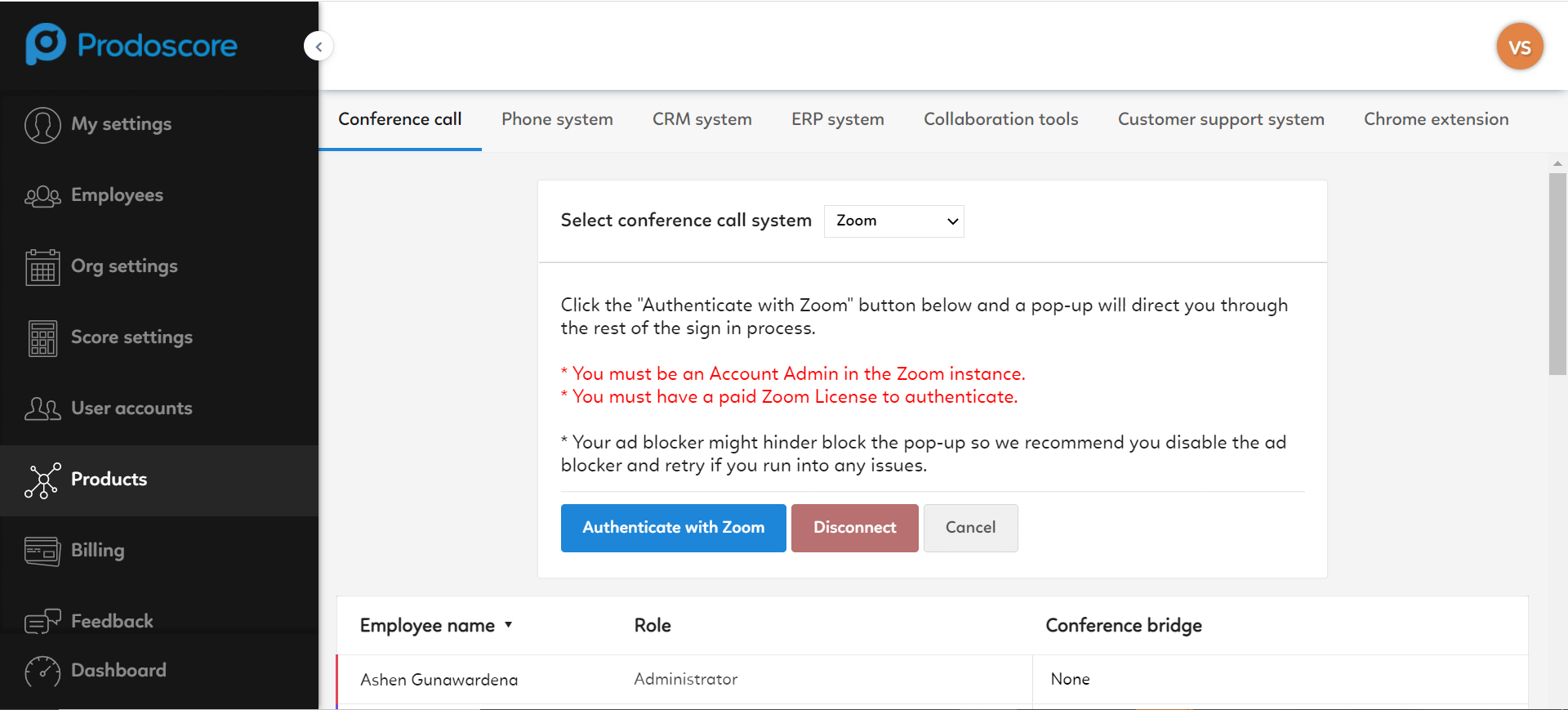
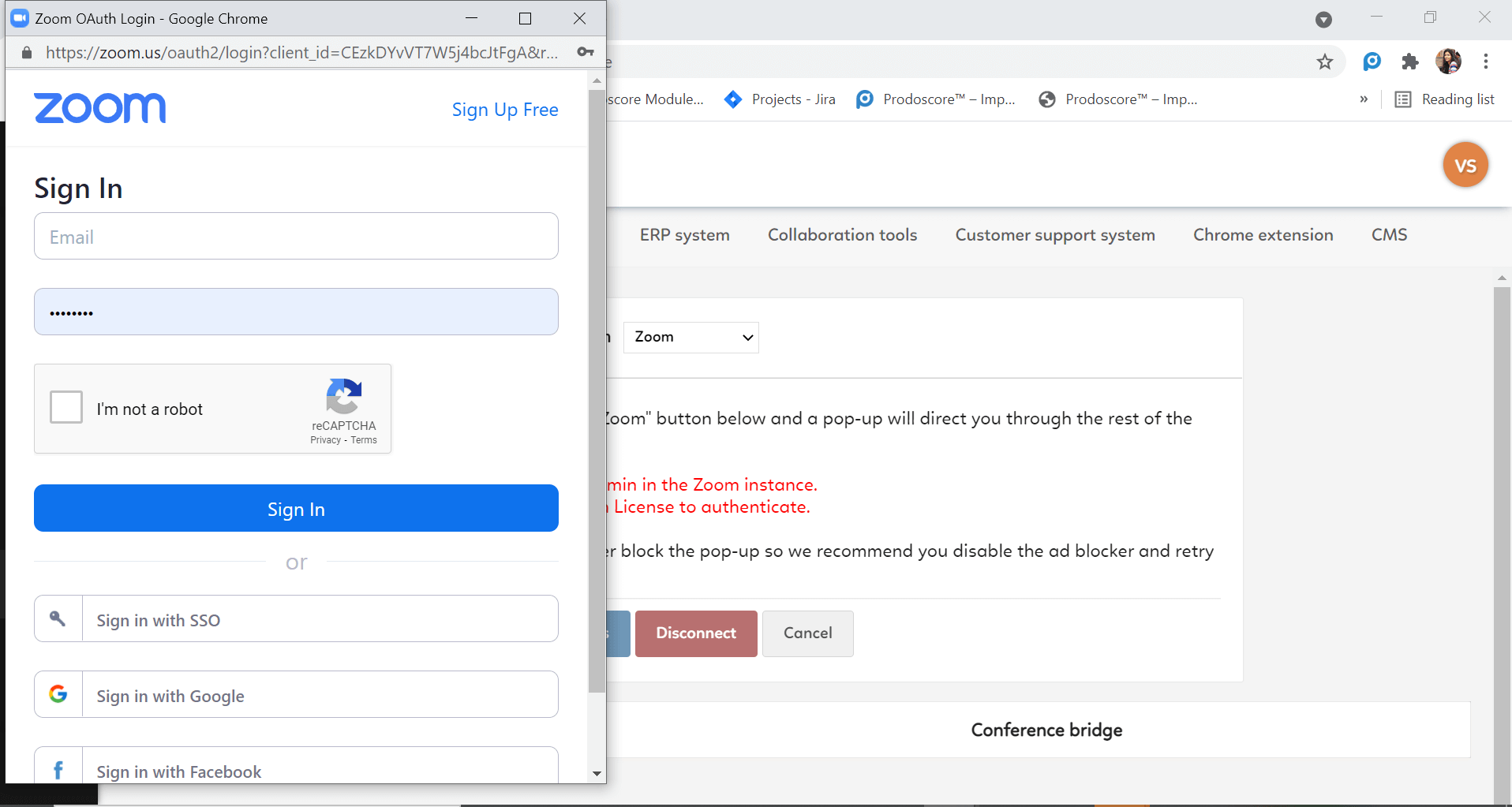
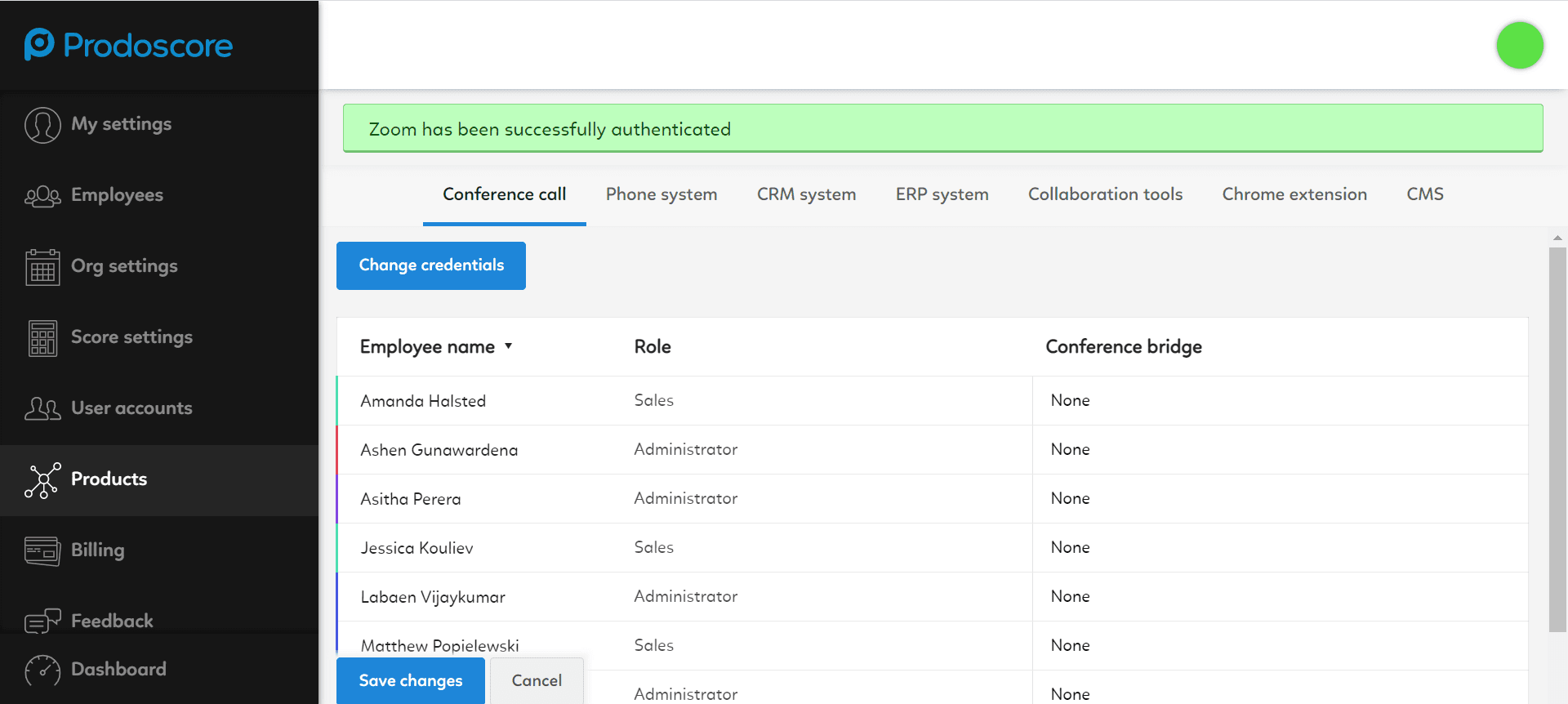

- The domain administrator can start setting up the integration to Prodoscore by directing from the left navigation menu in the Prodoscore Dashboard, as follows:
Usage
When the Zoom integration is installed within Prodoscore for a customer domain, the duration of Zoom meetings and Calls will be taken into account for calculating the productivity score.
The overall duration for the day will be displayed for each employee, which will be accounted for their day’s score.
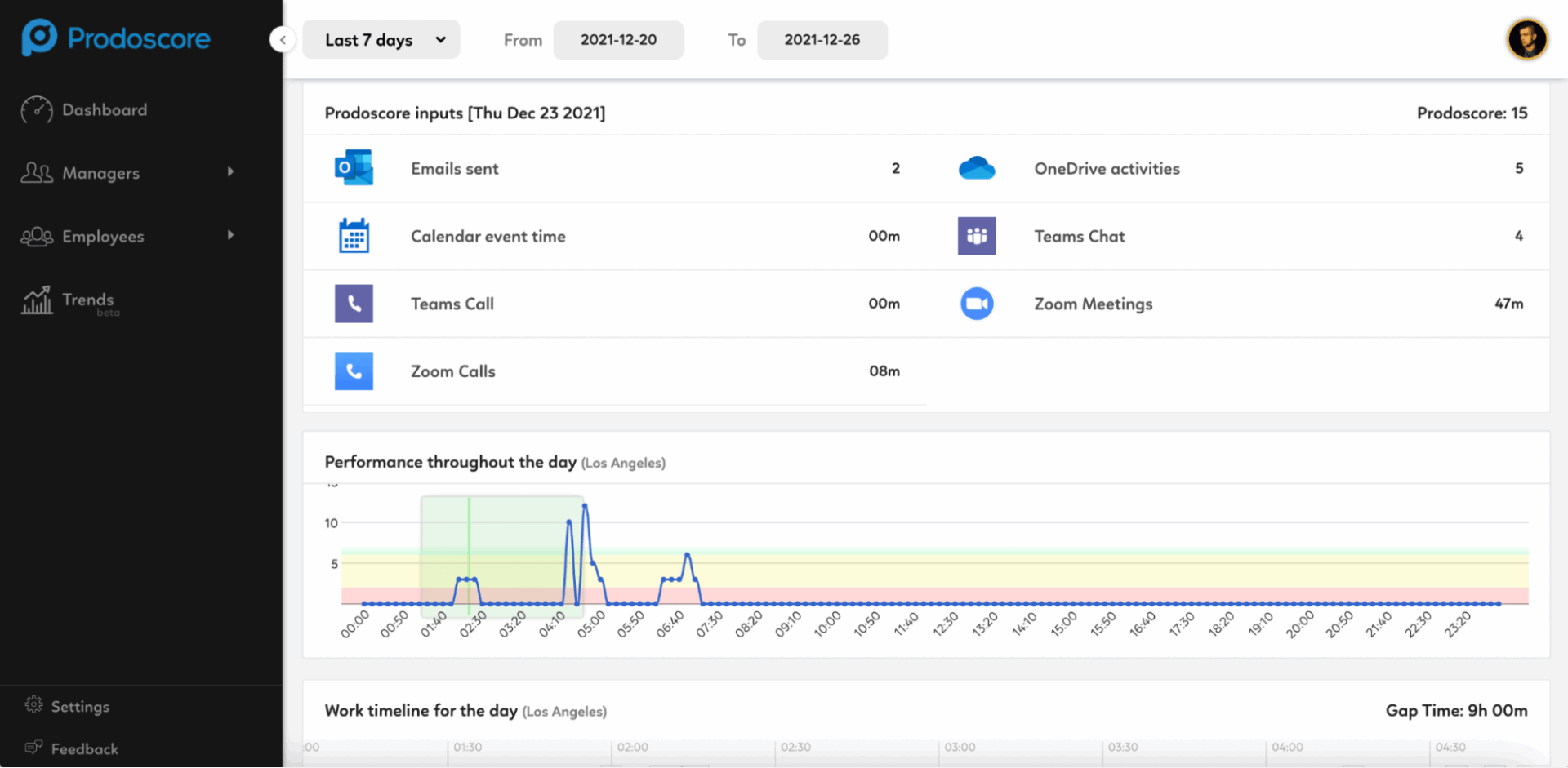
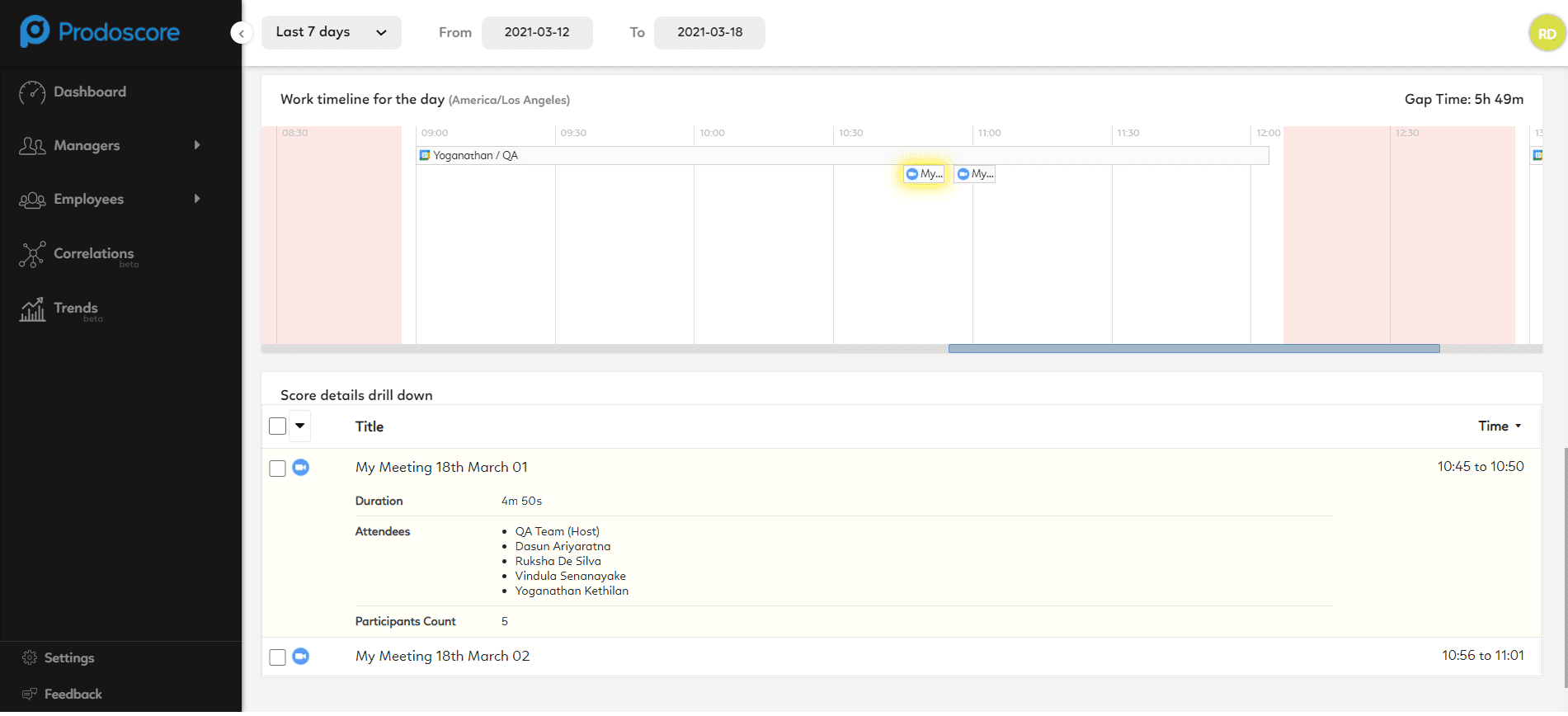
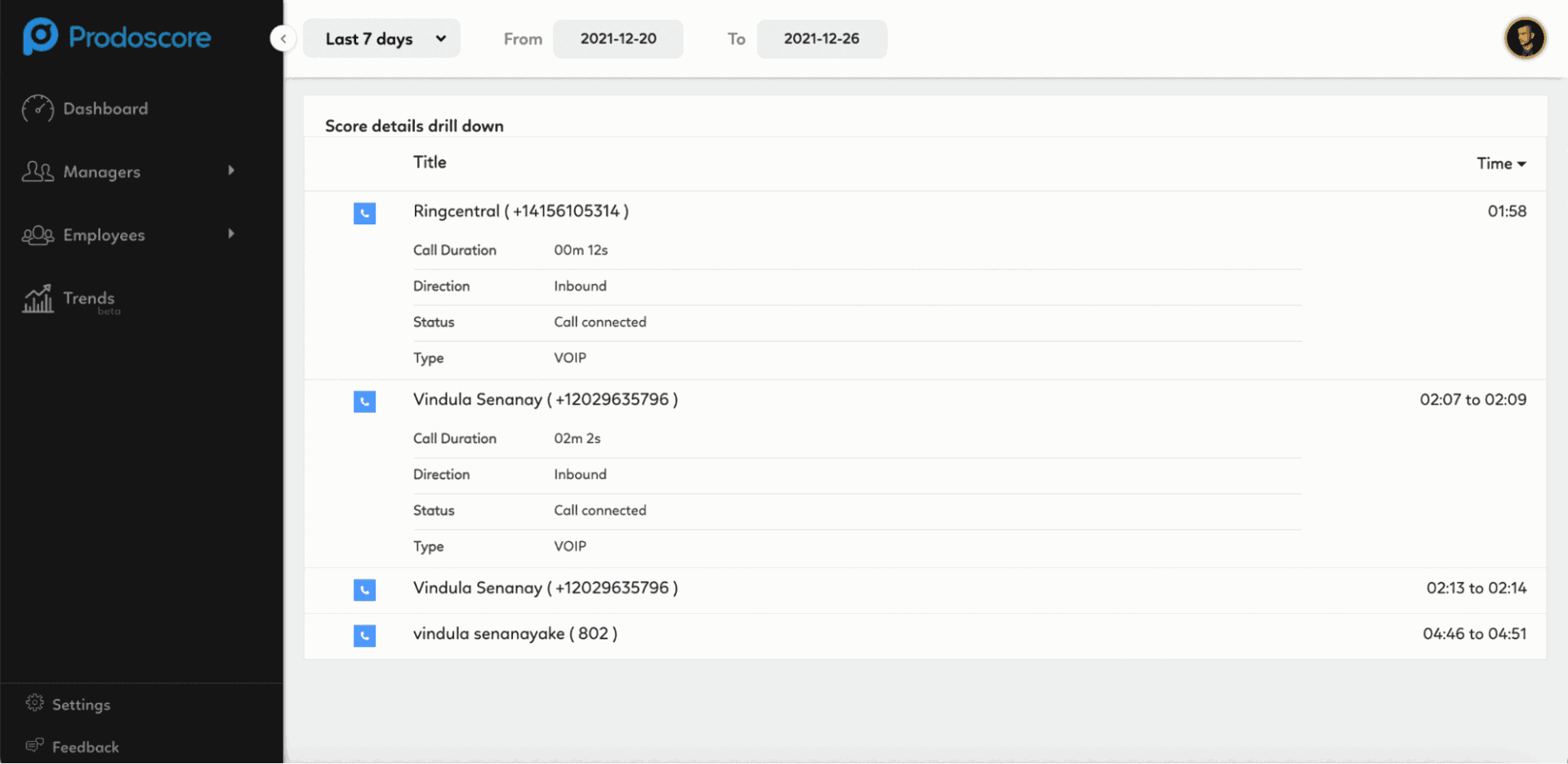
Further, managers will have the ability to drill down into the employees’ Zoom Meetings and Calls participation. They can view the meeting participation and the duration the employee has been in each meeting.
The meeting and call details will be displayed as well, showing the total number of participants (internal and external attendees) and the list of internal attendees.
Zoom Meetings details view
Zoom Calls details view
Uninstallation: Disconnecting Zoom
- The domain administrator can be directed to the Zoom integration from the left navigation menu in the Prodoscore Dashboard, as follows:
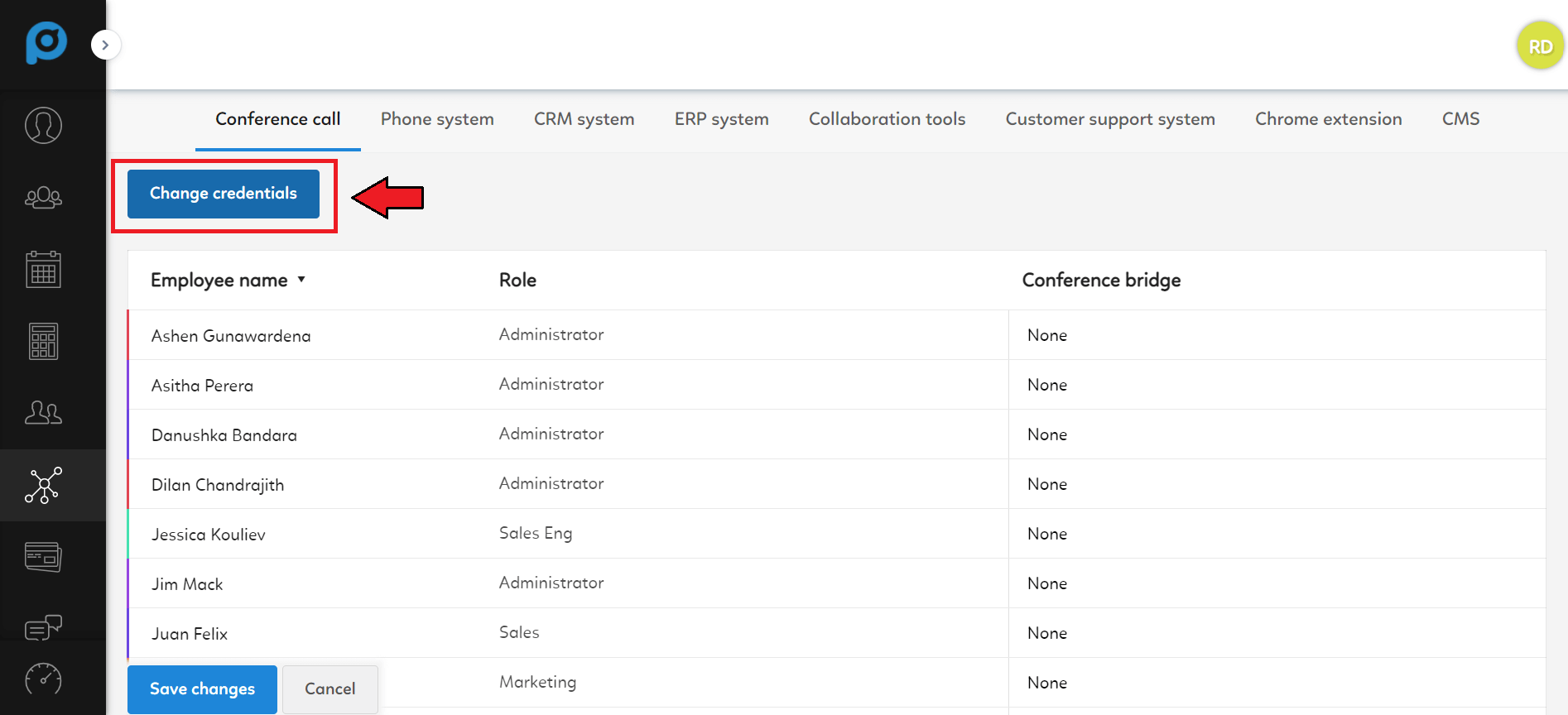
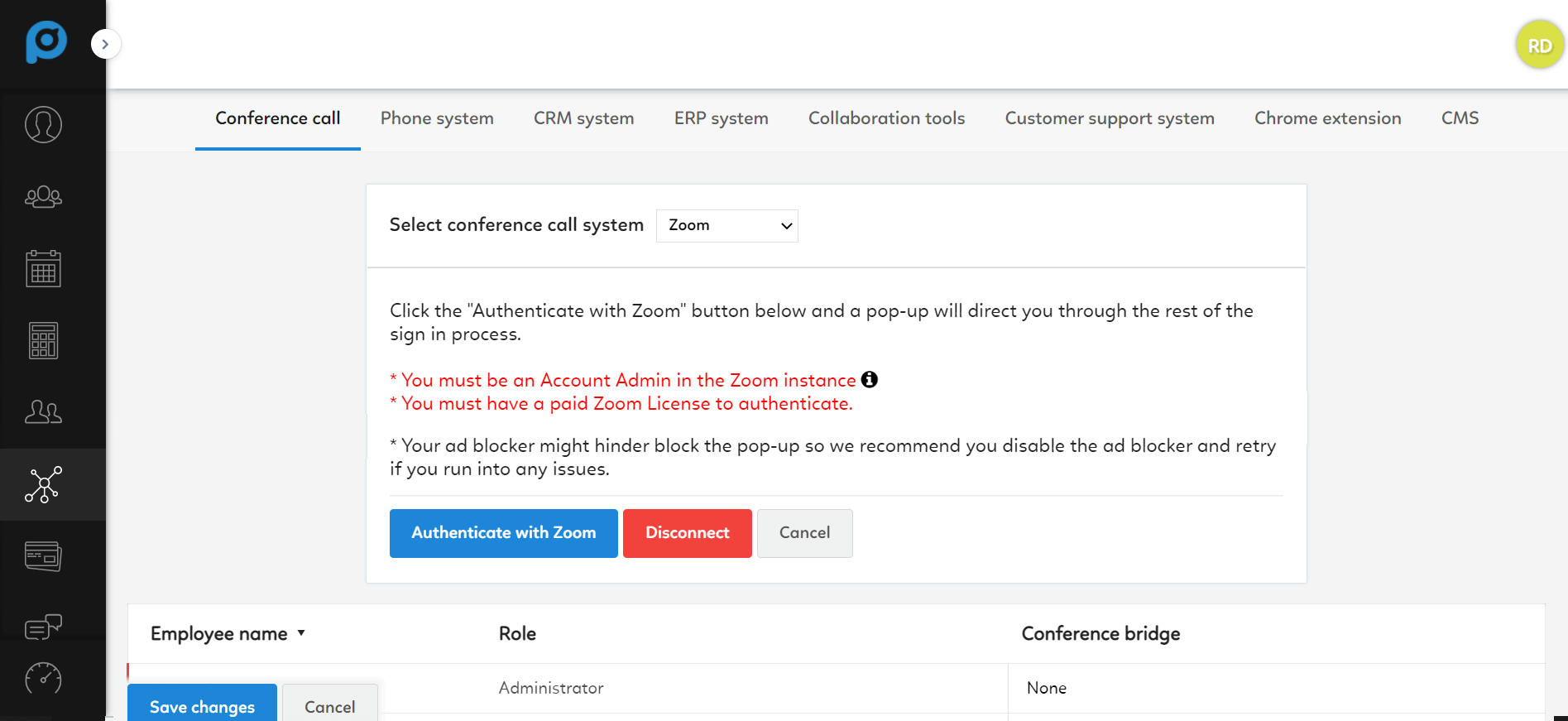
Settings → Products → Conference Call - Click the Change Credentials button to open the Zoom Authentication menu.
- The user can then click “Disconnect” and Zoom will be disconnected from Prodoscore.
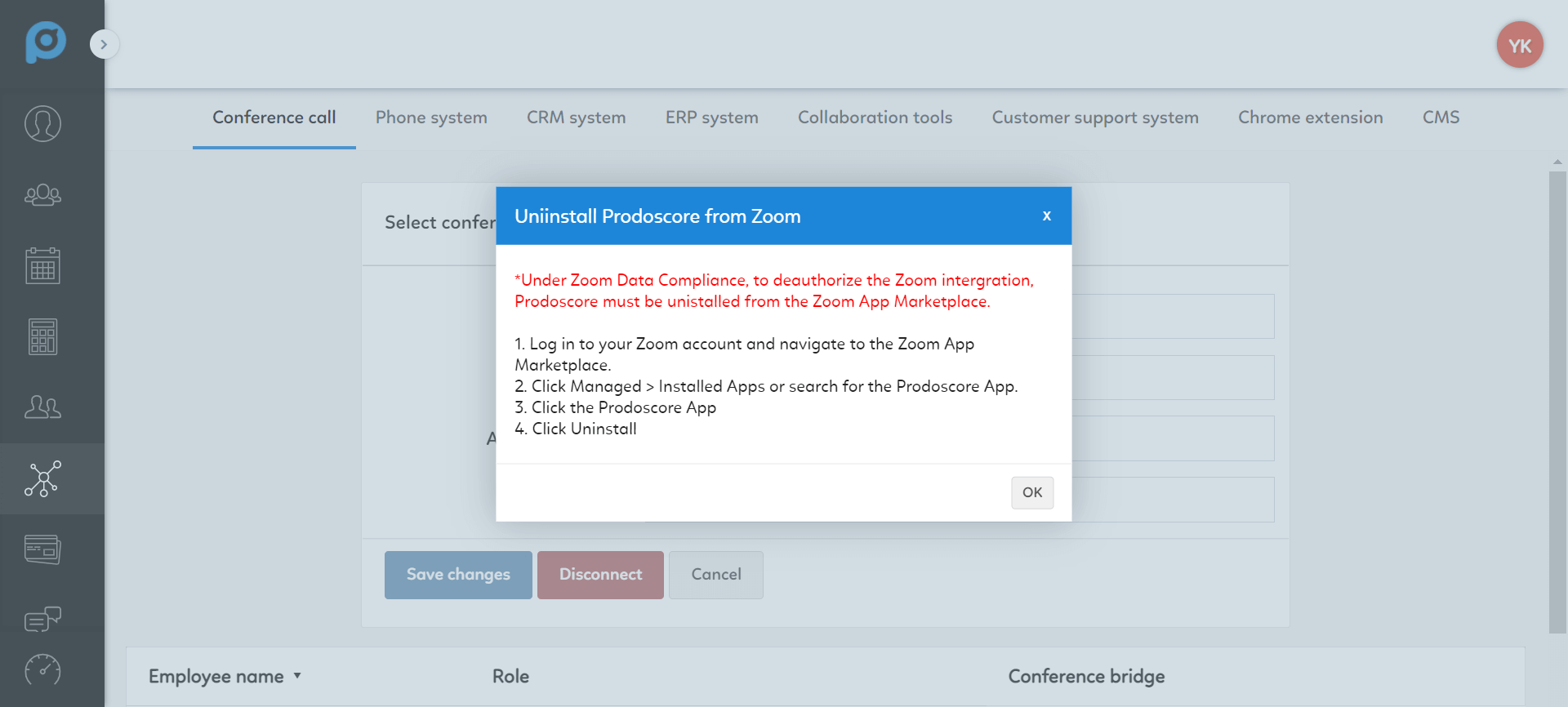
- Once Disconnected, the user will be given a notification prompting them to uninstall Prodoscore from the Zoom Marketplace as per Data Compliance.
- Steps to uninstall Prodoscore from Zoom App Marketplace
- Log in to your Zoom account and navigate to the Zoom App Marketplace
- Click Managed > Installed Apps or search for the Prodoscore app
- Click the Prodoscore App
- Click Uninstall